
사용자 그룹
개요
사용자 그룹은 조직적 목적으로 사용자를 그룹화하는 것뿐만 아니라 데이터에 대한 권한을 할당하는 데도 사용됩니다. 호스트 그룹과 템플릿 그룹의 데이터를 보고 구성하는 권한은 개별 사용자가 아닌 사용자 그룹에 할당됩니다.
한 사용자 그룹에서 이용 가능한 정보와 다른 그룹에서 이용 가능한 정보를 구분하는 것이 유용한 경우가 많습니다. 이는 사용자를 그룹화한 다음 호스트 및 템플릿 그룹에 다양한 권한을 할당함으로써 이룰 수 있습니다.
사용자는 여러 그룹에 속할 수 있습니다.
구성
사용자 그룹을 구성하려면:
- Users > User groups로 이동합니다.
- Create user group을 클릭합니다 (기존 그룹을 편집하려면 그룹 이름을 클릭).
- 양식에서 그룹 속성을 편집합니다.
User group 탭에는 일반 그룹 속성이 포함되어 있습니다:
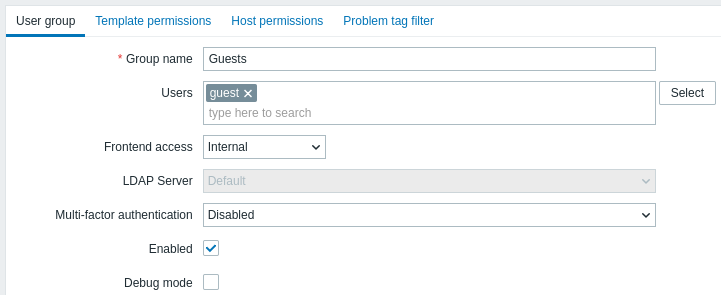
필수 입력 필드는 빨간색 별표로 표시됩니다.
| 매개변수 | 설명 |
|---|---|
| Group name | 고유한 그룹 이름입니다. |
| Users | 그룹에 사용자를 추가하려면 기존 사용자의 이름을 입력하기 시작하세요. 일치하는 사용자 이름 드롭다운이 나타나면 아래로 스크롤하여 선택합니다. 또는 팝업에서 사용자를 선택하려면 Select 버튼을 클릭하세요. |
| Frontend access | 그룹의 사용자가 인증되는 방식입니다. System default - 기본 인증 방법을 사용합니다 (전역으로 설정). Internal - 전역적으로 LDAP 인증이 사용되더라도 Zabbix 내부 인증을 사용합니다. 전역 기본값이 HTTP 인증인 경우 무시됩니다. LDAP - 전역적으로 내부 인증이 사용되더라도 LDAP 인증을 사용합니다. 전역 기본값이 HTTP 인증인 경우 무시됩니다. Disabled - 이 그룹은 Zabbix 프론트엔드에 접근이 금지됩니다 |
| LDAP server | 사용자를 인증하는 데 사용할 LDAP 서버를 선택합니다. 이 필드는 Frontend access가 LDAP 또는 System default로 설정된 경우에만 활성화됩니다. |
| Multi-factor authentication | 사용자를 인증하는 데 사용할 다단계 인증 방법을 선택합니다: Default - MFA 구성에서 기본값으로 설정된 방법을 사용합니다. MFA가 활성화된 경우 새 사용자 그룹에 기본으로 선택되는 옵션입니다. <방법 이름> - 선택한 방법을 사용합니다 (예: "Zabbix TOTP"). Disabled - 이 그룹은 MFA가 비활성화됩니다. MFA가 비활성화된 경우 새 사용자 그룹에 기본으로 선택되는 옵션입니다. 사용자가 MFA가 활성화된 여러 사용자 그룹에 속해 있는 경우 (또는 최소 한 그룹에서 MFA가 활성화된 경우), 다음 인증 규칙이 적용됩니다: 어느 그룹이든 "Default" MFA 방법을 사용하면 그 방법으로 사용자를 인증합니다. 그렇지 않으면 (알파벳순으로) 첫 번째 방법이 인증에 사용됩니다. |
| Enabled | 사용자 그룹과 그룹 구성원의 상태입니다. Checked - 사용자 그룹과 사용자가 활성화됨 Unchecked - 사용자 그룹과 사용자가 비활성화됨 |
| Debug mode | 사용자에 대한 디버그 모드를 활성화하려면 이 체크박스를 표시하세요. |
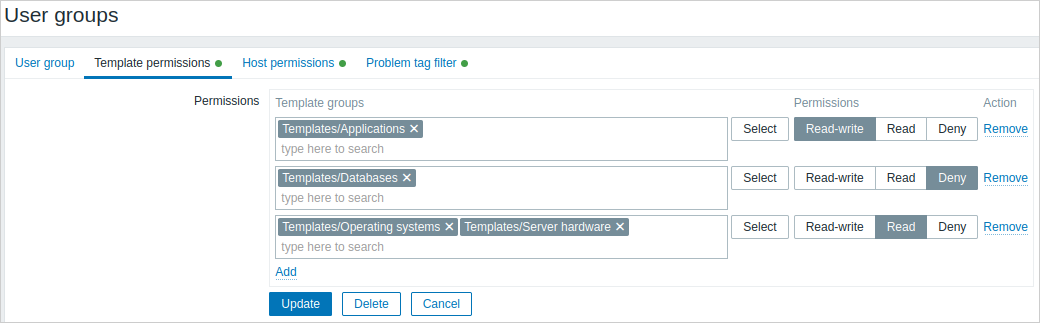
Template permissions 탭에서는 템플릿 그룹(및 그에 따른 템플릿) 데이터에 대한 사용자 그룹 접근을 지정할 수 있습니다:
Host permissions 탭에서는 호스트 그룹(및 그에 따른 호스트) 데이터에 대한 사용자 그룹 접근을 지정할 수 있습니다:
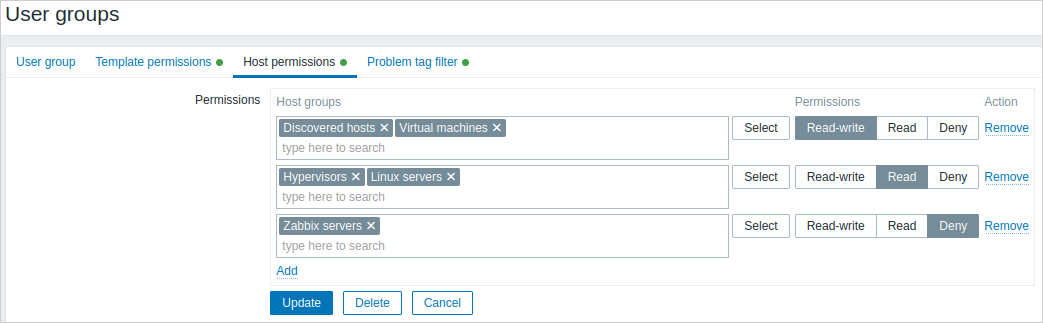
 를 클릭하여 템플릿/호스트 그룹
(상위 그룹이든 중첩 그룹이든)을 선택하고 그에 권한을 할당합니다. 그룹 이름을 입력하기 시작하면
(일치하는 그룹의 드롭다운이 나타납니다) 또는 Select를 클릭하면 모든 그룹을 나열하는 팝업 창이 열립니다.
를 클릭하여 템플릿/호스트 그룹
(상위 그룹이든 중첩 그룹이든)을 선택하고 그에 권한을 할당합니다. 그룹 이름을 입력하기 시작하면
(일치하는 그룹의 드롭다운이 나타납니다) 또는 Select를 클릭하면 모든 그룹을 나열하는 팝업 창이 열립니다.
그런 다음 옵션 버튼을 사용하여 선택한 그룹에 권한을 할당합니다. 가능한 권한은 다음과 같습니다:
- Read-write - 그룹에 대한 읽기-쓰기 접근;
- Read - 그룹에 대한 읽기 전용 접근;
- Deny - 그룹에 대한 접근 거부.
동일한 템플릿/호스트 그룹이 서로 다른 권한 설정으로 여러 행에 추가된 경우, 가장 엄격한 권한이 적용됩니다.
Super admin 사용자는 중첩 그룹이 상위 그룹과 동일한 수준의 권한을 갖도록 강제할 수 있습니다. 이는 호스트/템플릿 그룹 구성 양식에서 할 수 있습니다.
Template permissions와 Host permissions 탭은 동일한 매개변수 집합을 지원합니다.
그룹에 대한 현재 권한은 Permissions 블록에 표시되며, 수정하거나 제거할 수 있습니다.
사용자 그룹이 호스트에 대해 Read-write 권한을 갖고 이 호스트에 연결된 템플릿에 대해 Deny 권한이나 권한이 없는 경우, 해당 그룹의 사용자는 호스트에서 템플릿화된 항목을 편집할 수 없으며 템플릿 이름은 Inaccessible template로 표시됩니다.
Problem tag filter 탭에서는 태그 이름과 값으로 필터링된 문제를 보기 위한 사용자 그룹의 태그 기반 권한을 설정할 수 있습니다:
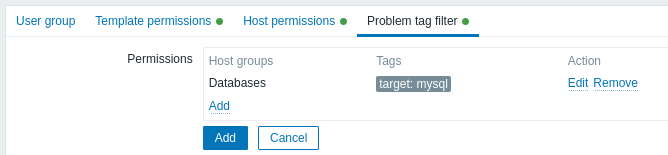
를 클릭하여 호스트 그룹을 선택합니다.
태그 필터를 적용할 호스트 그룹을 선택하려면 Select를 클릭하여
기존 호스트 그룹의 전체 목록을 가져오거나 호스트 그룹의 이름을 입력하기 시작하여
일치하는 그룹의 드롭다운을 가져옵니다. 문제 태그 필터는 템플릿 그룹에는 적용할 수 없으므로
호스트 그룹만 표시됩니다.
그런 다음 All tags에서 Tag list로 전환하여 필터링을 위한 특정 태그와 그 값을 설정할 수 있습니다.
값이 없는 태그 이름은 추가할 수 있지만, 이름이 없는 값은 추가할 수 없습니다. Permissions 블록에는
(값이 있는 경우 값과 함께) 처음 세 개의 태그만 표시됩니다. 더 많은 태그가 있는 경우
 아이콘을 클릭하거나 마우스를 올려 확인할 수 있습니다.
태그 필터를 사용하면 호스트 그룹에 대한 접근과 문제를 볼 수 있는 가능성을 분리할 수 있습니다.
예를 들어 데이터베이스 관리자가 "MySQL" 데이터베이스 문제만 보아야 한다면, 먼저 데이터베이스 관리자를 위한 사용자 그룹을 생성한 다음 "target" 태그 이름과 "mysql" 값을 지정해야 합니다.
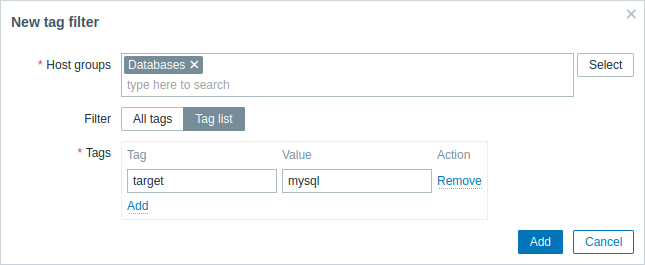
"target" 태그 이름이 지정되고 값 필드가 비어 있으면, 사용자 그룹은 선택한 호스트 그룹에서 "target" 태그 이름을 가진 모든 문제를 보게 됩니다. All tags가 선택되면, 사용자 그룹은 지정된 호스트 그룹의 모든 문제를 보게 됩니다.
태그 이름과 태그 값이 올바르게 지정되었는지 확인하세요. 그렇지 않으면 사용자 그룹은 어떤 문제도 볼 수 없습니다.
사용자가 여러 사용자 그룹의 구성원인 예를 살펴보겠습니다. 이 경우 필터링은 태그에 대해 OR 조건을 사용합니다.
| User group A | < | < | User group B | < | < | 두 그룹의 구성원인 사용자에게 표시되는 결과 |
| Tag filter | < | < | < | < | < | ^ |
| Host group | Tag name | Tag value | Host group | Tag name | Tag value | ^ |
| Databases | target | mysql | Databases | target | oracle | target:mysql 또는 target:oracle 문제 표시됨 |
| Databases | set to: All tags | < | Databases | target | oracle | 모든 문제 표시됨 |
| Problem tag filter에 구성되지 않음 | < | < | Databases | target | oracle | target:oracle 문제 표시됨 |
필터를 추가하면 (예를 들어 특정 호스트 그룹 "Databases"의 모든 태그) 다른 호스트 그룹의 문제를 볼 수 없게 됩니다.
여러 사용자 그룹으로부터의 접근
사용자는 여러 사용자 그룹에 속할 수 있습니다. 이 그룹들은 호스트나 템플릿에 대해 서로 다른 접근 권한을 가질 수 있습니다.
따라서 비권한 사용자가 결과적으로 접근할 수 있는 개체가 무엇인지 아는 것이 중요합니다. 다음 예에서는 사용자 그룹 A와 B에 속한 사용자에게 (Hostgroup 1에 있는) 호스트 X에 대한 접근이 다양한 상황에서 어떻게 영향을 받는지 살펴봅니다.
- Group A가 Hostgroup 1에 대해 Read 접근만 있고, Group B가 Hostgroup 1에 대해 Read-write 접근이 있는 경우, 사용자는 'X'에 대해 Read-write 접근을 얻습니다.
"Read-write" 권한은 "Read" 권한보다 우선합니다.
- 위와 같은 시나리오에서 'X'가 Group A나 B에게 거부된 Hostgroup 2에도 동시에 속한 경우, Hostgroup 1에 대한 Read-write 접근이 있더라도 'X'에 대한 접근은 사용할 수 없게 됩니다.
- Group A에 정의된 권한이 없고 Group B가 Hostgroup 1에 대해 Read-write 접근이 있는 경우, 사용자는 'X'에 대해 Read-write 접근을 얻습니다.
- Group A가 Hostgroup 1에 대해 Deny 접근이 있고 Group B가 Hostgroup 1에 대해 Read-write 접근이 있는 경우, 사용자는 'X'에 대한 접근이 거부됩니다.
기타 세부 사항
- 호스트에 대해 Read-write 접근이 있는 Admin 수준 사용자는 템플릿이 속한 템플릿 그룹에 대한 접근 권한이 없으면 템플릿을 연결/연결 해제할 수 없습니다. 템플릿 그룹에 대해 Read 접근이 있으면 호스트에 템플릿을 연결/연결 해제할 수는 있지만, 템플릿 목록에서 어떤 템플릿도 보이지 않으며 다른 곳에서 템플릿을 다룰 수 없습니다.
- 호스트에 대해 Read 접근이 있는 Admin 수준 사용자는 구성 섹션의 호스트 목록에서 해당 호스트를 볼 수 없습니다. 하지만 호스트 트리거는 IT 서비스 구성에서 접근할 수 있습니다.
- Super Admin이 아닌 사용자('guest' 포함)는 맵이 비어 있거나 이미지만 있는 한 네트워크 맵을 볼 수 있습니다. 호스트, 호스트 그룹 또는 트리거가 맵에 추가되면 권한이 적용됩니다.
- Zabbix 서버는 관련 호스트에 대한 접근이 명시적으로 "거부"된 경우 작업 운영 수신자로 정의된 사용자에게 알림을 보내지 않습니다.